Integrating MS Teams with Slack usually means dealing with a lot of coding, handling APIs, and fixing tricky errors. But what if you didn’t have to write a single line of code? In this blog, I’ll show you how to easily set up a secure and real-time integration between MS Teams and Slack using a simple tool called MultiSync Made Easy.
Let’s dive into the steps:
Step 1: Install the MultiSync Made Easy App
First things first, head over to the Salesforce AppExchange and search for MultiSync Made Easy.
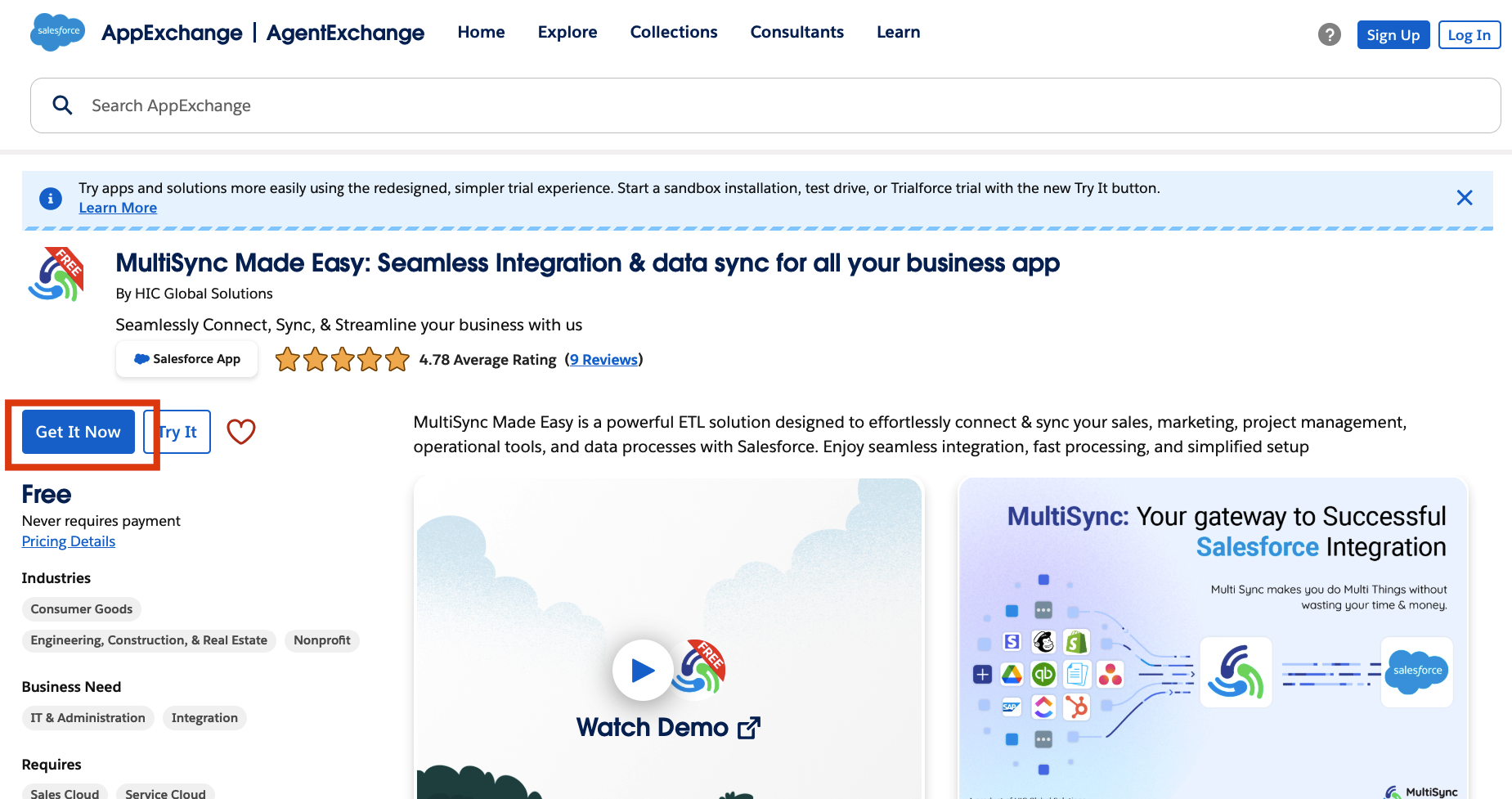
Once you find it, click “Get It Now” and follow the steps to install the Multi Sync Made Easy app into your Salesforce org. After installation, open the App Launcher (that grid icon in the top left) and search for “MultiSync Made Easy” to access the app.
Step 2: Connect MS Teams with MultiSync
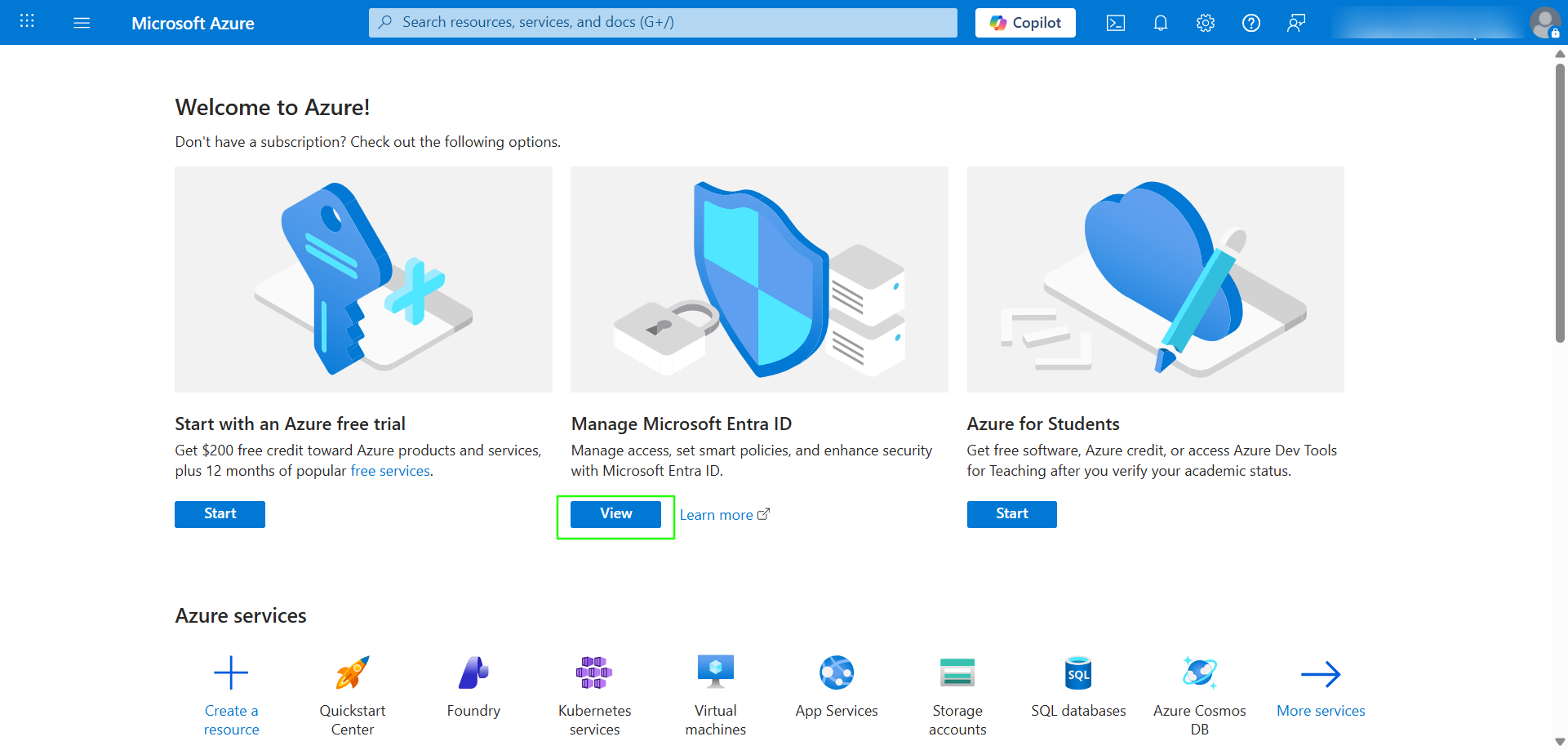
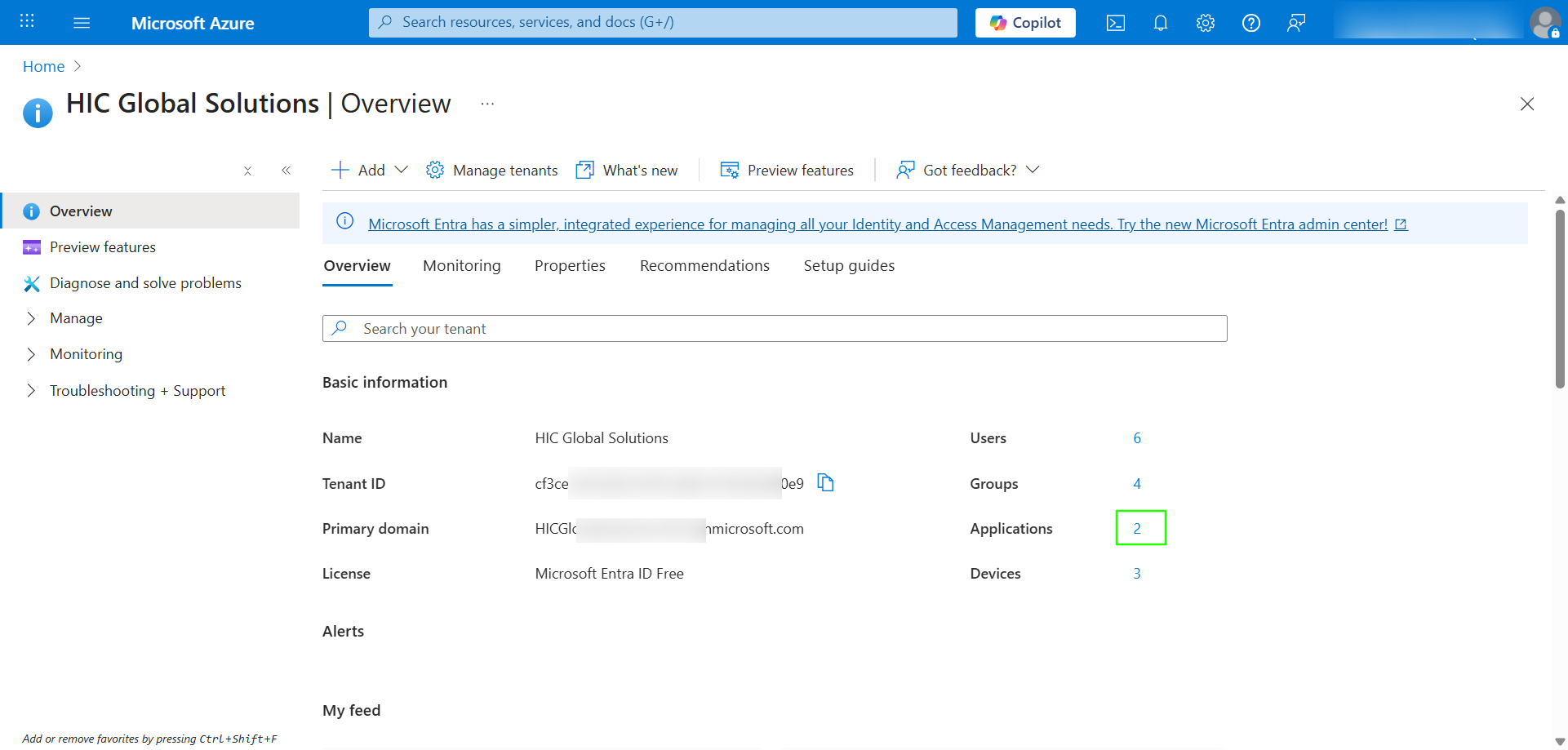
After logging in to the MS Azure, click on the View Button in the center of the screen, then click on Applications count.
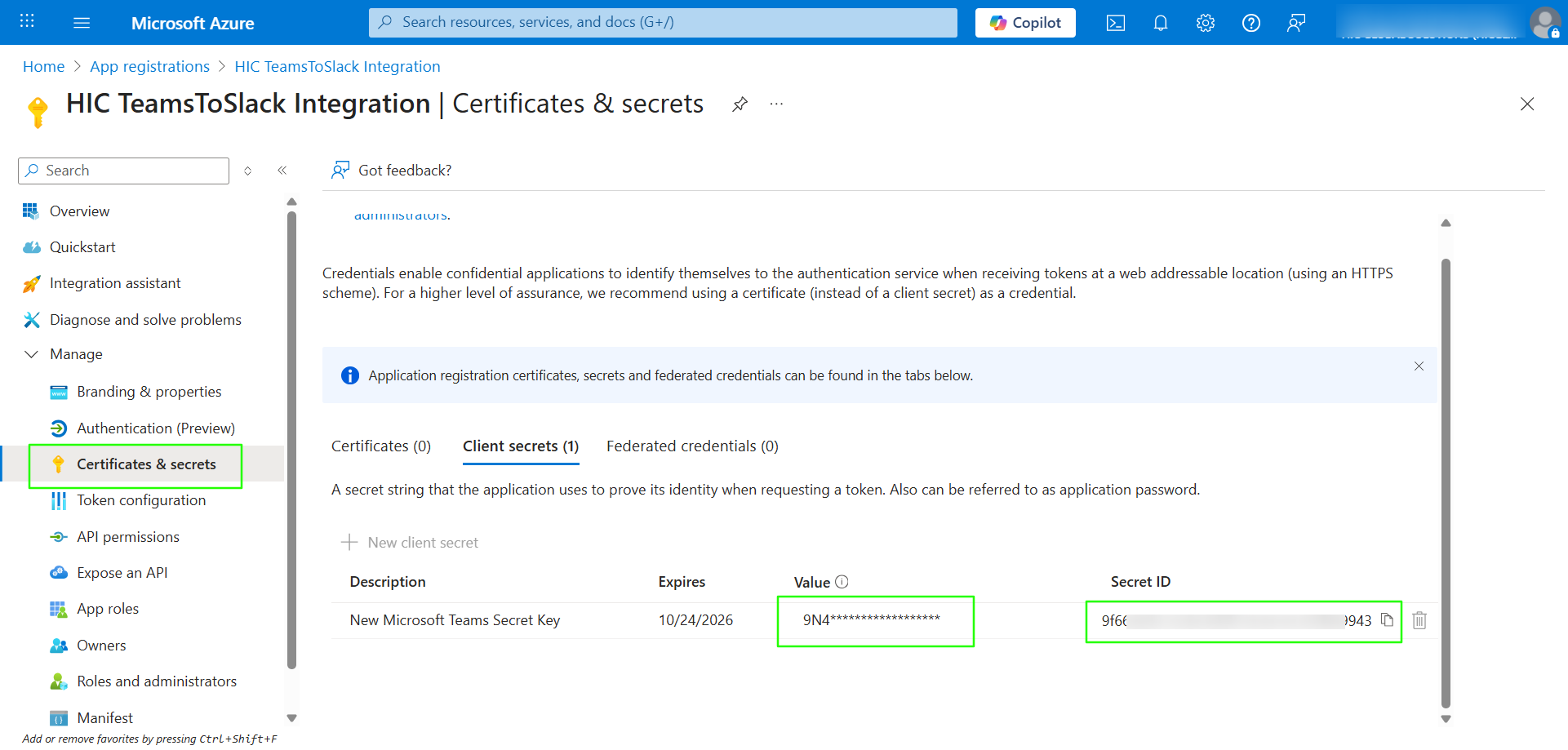
After navigating to the Applications section, select the ‘Certificates & secrets’ tab. ‘Value and Secret ID’ will be displayed on this screen. Copy the credentials.
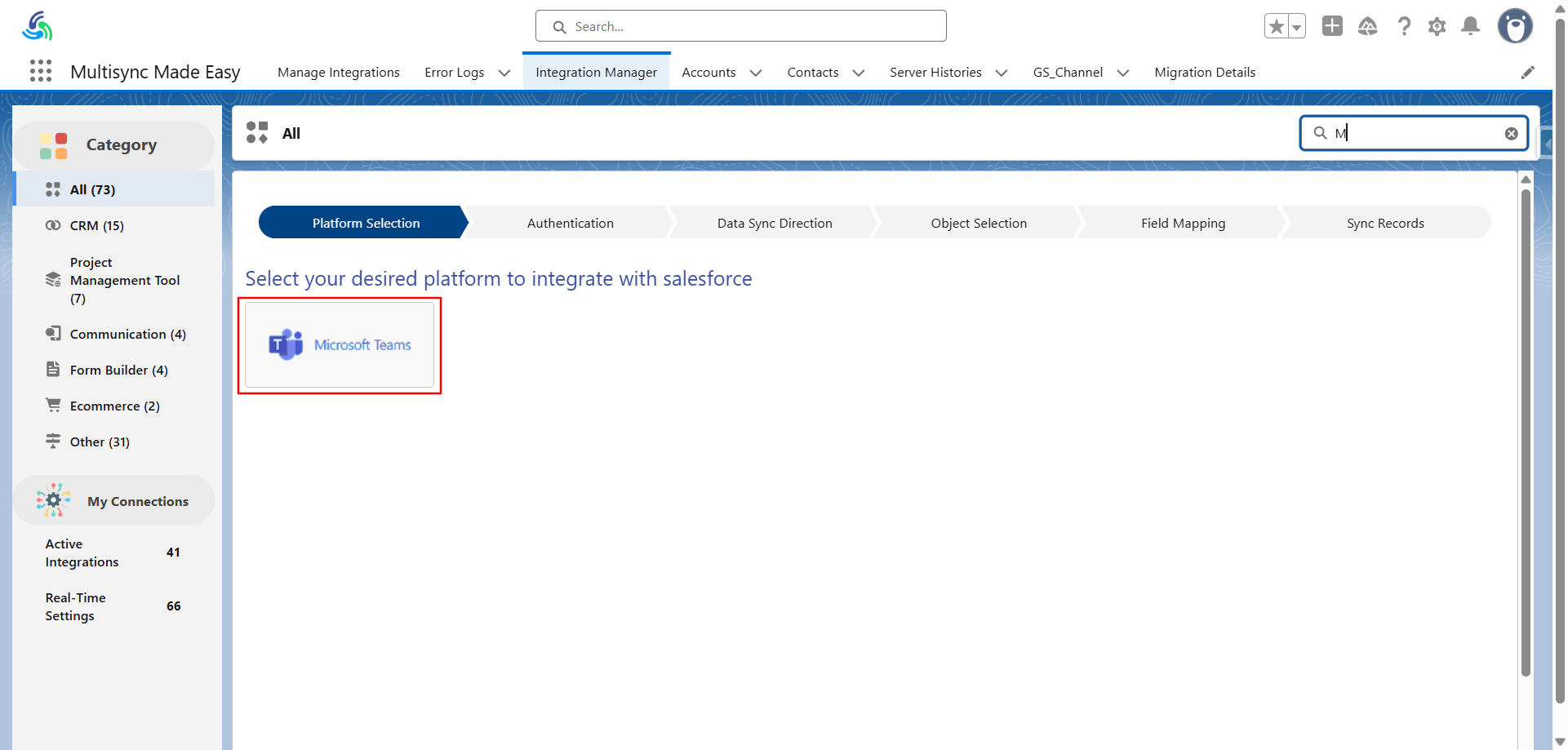
Note: Now, go to the MultiSync Home Page in Salesforce and search for the MS Teams platform.
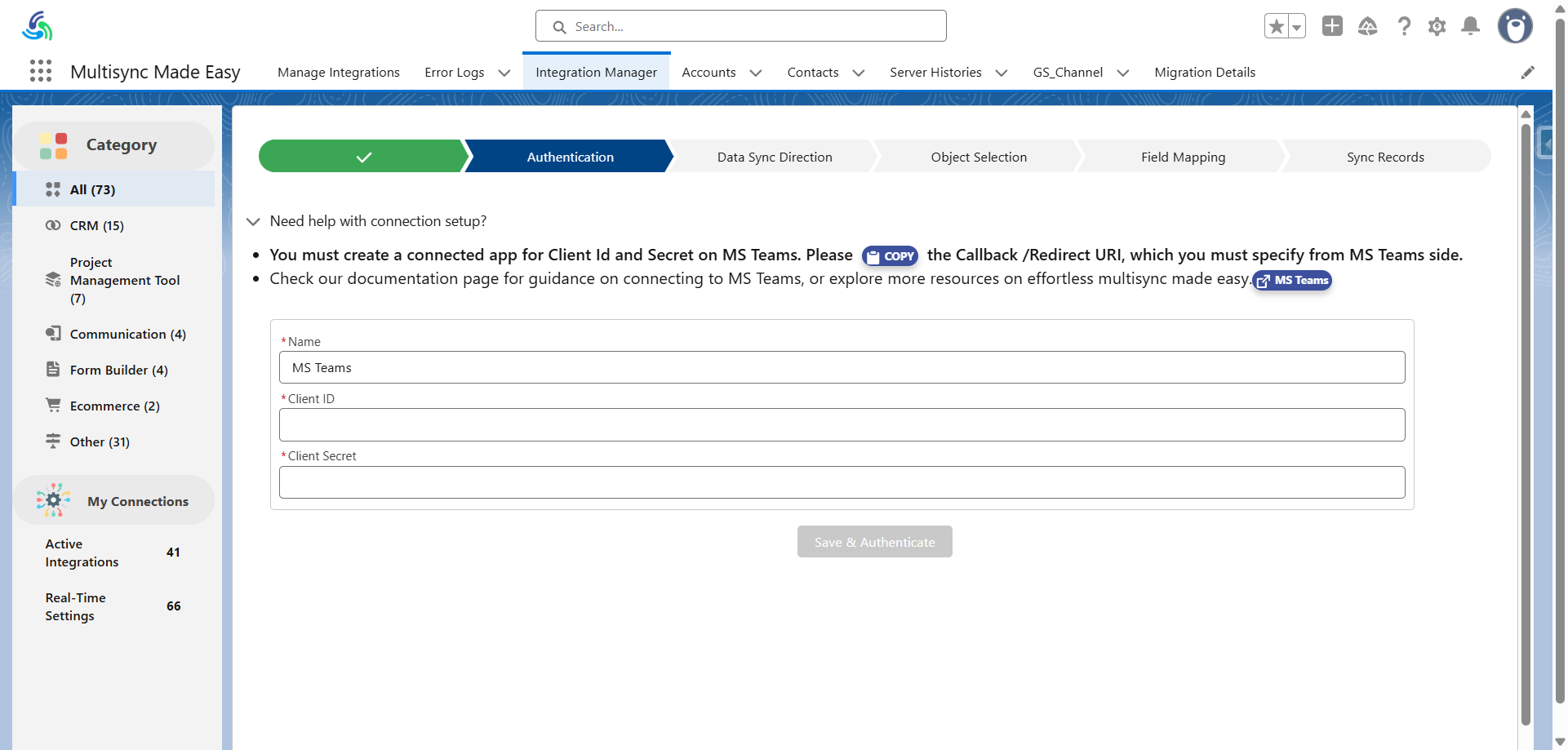
Now name your integration, then paste your Client ID and Client Secret. Then, click on the “Select and Authenticate” button.
Step 3: Map Salesforce Objects with MS Teams
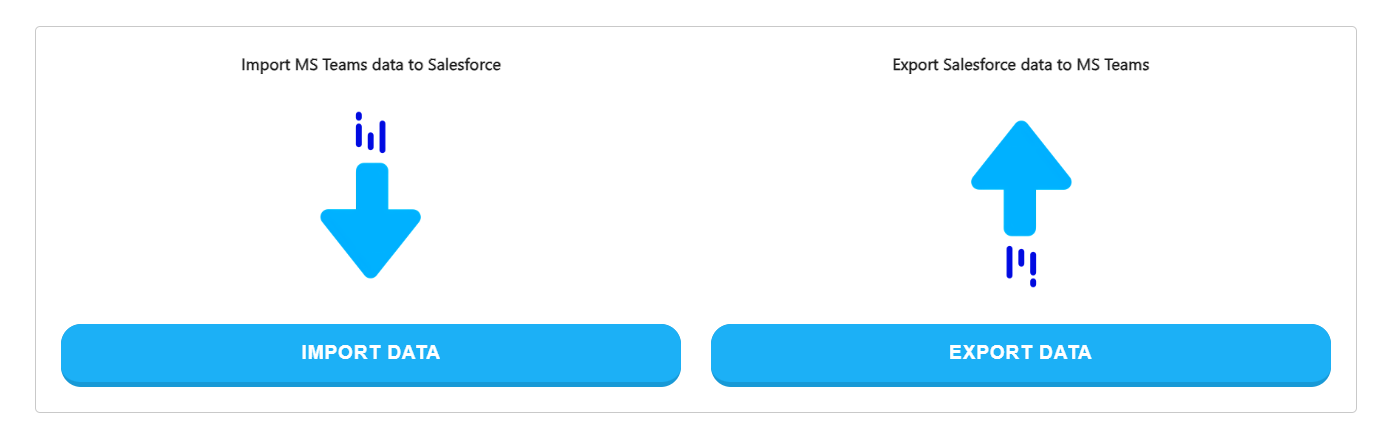
Select whether you would like to import or export data.
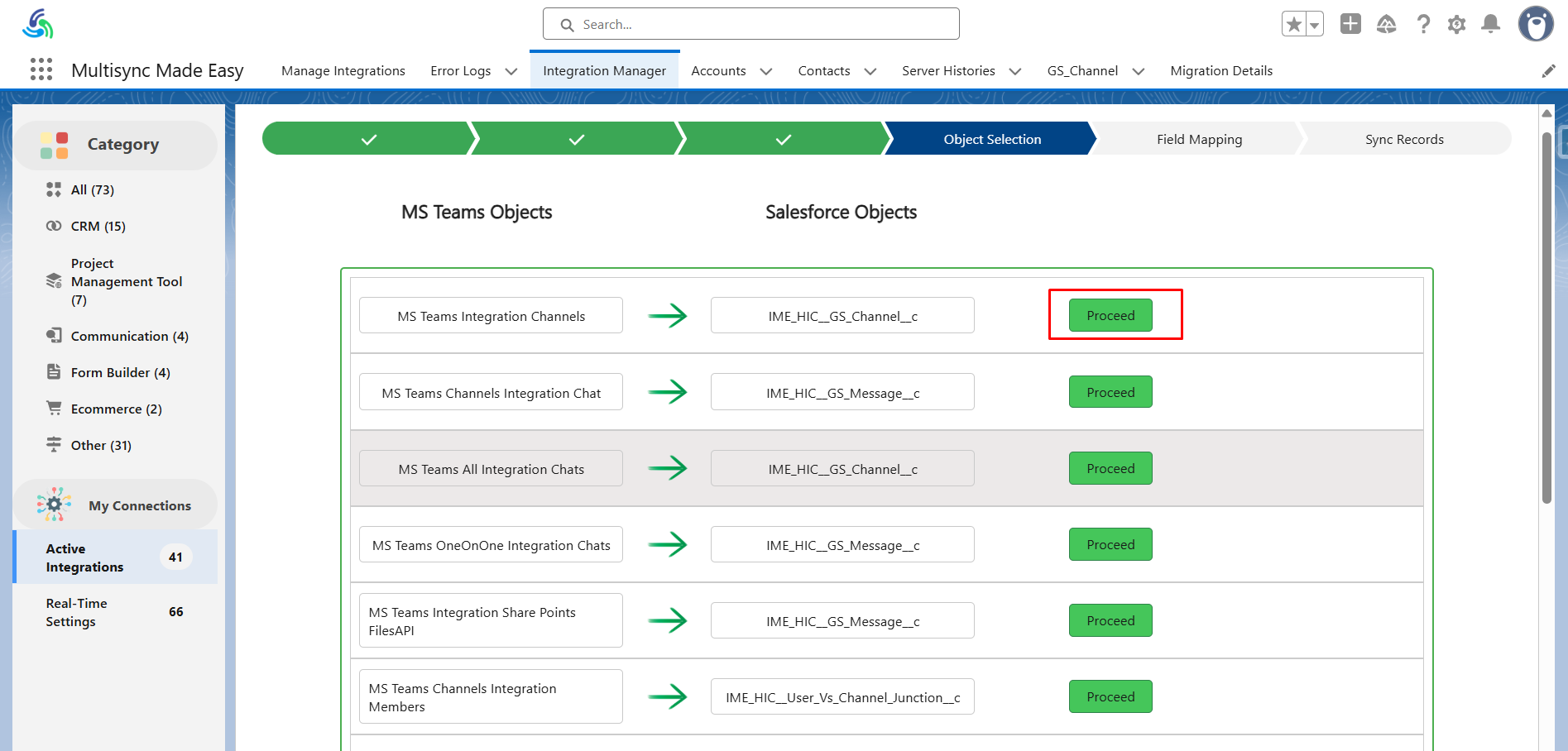
After that, select the Proceed button for the object you want to import data for.
Then, you can change the field mapping or go with the default one.
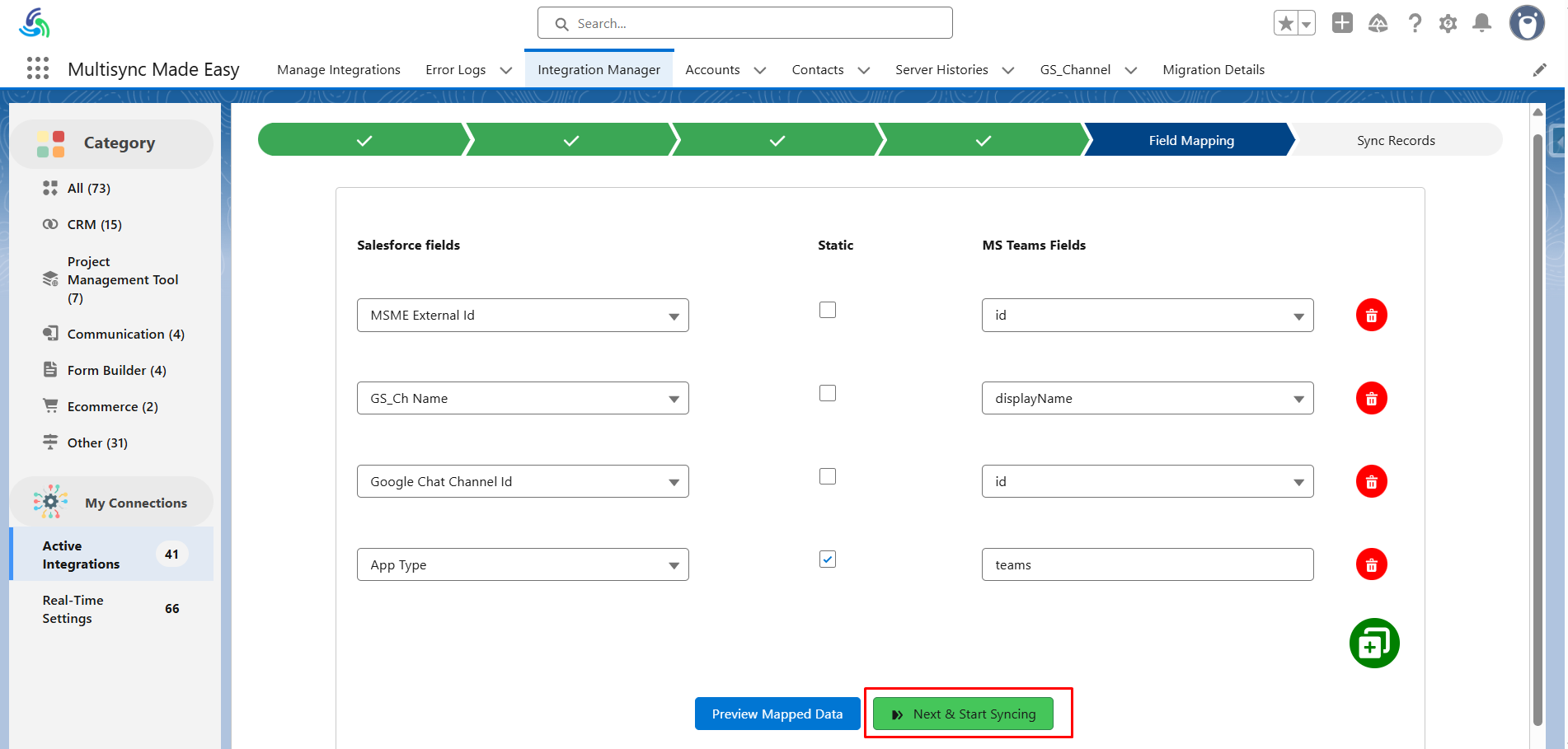
If you want to create a custom field mapping, you need to click the “Add” button.
Step 4: Sync Data
You can schedule the data sync for a specific time or can sync it instantly.

After synchronization, all data related to the selected object will be inserted into Salesforce. Subsequently, all records will be automatically migrated to the Slack platform, where the process can be monitored with real-time progress updates.
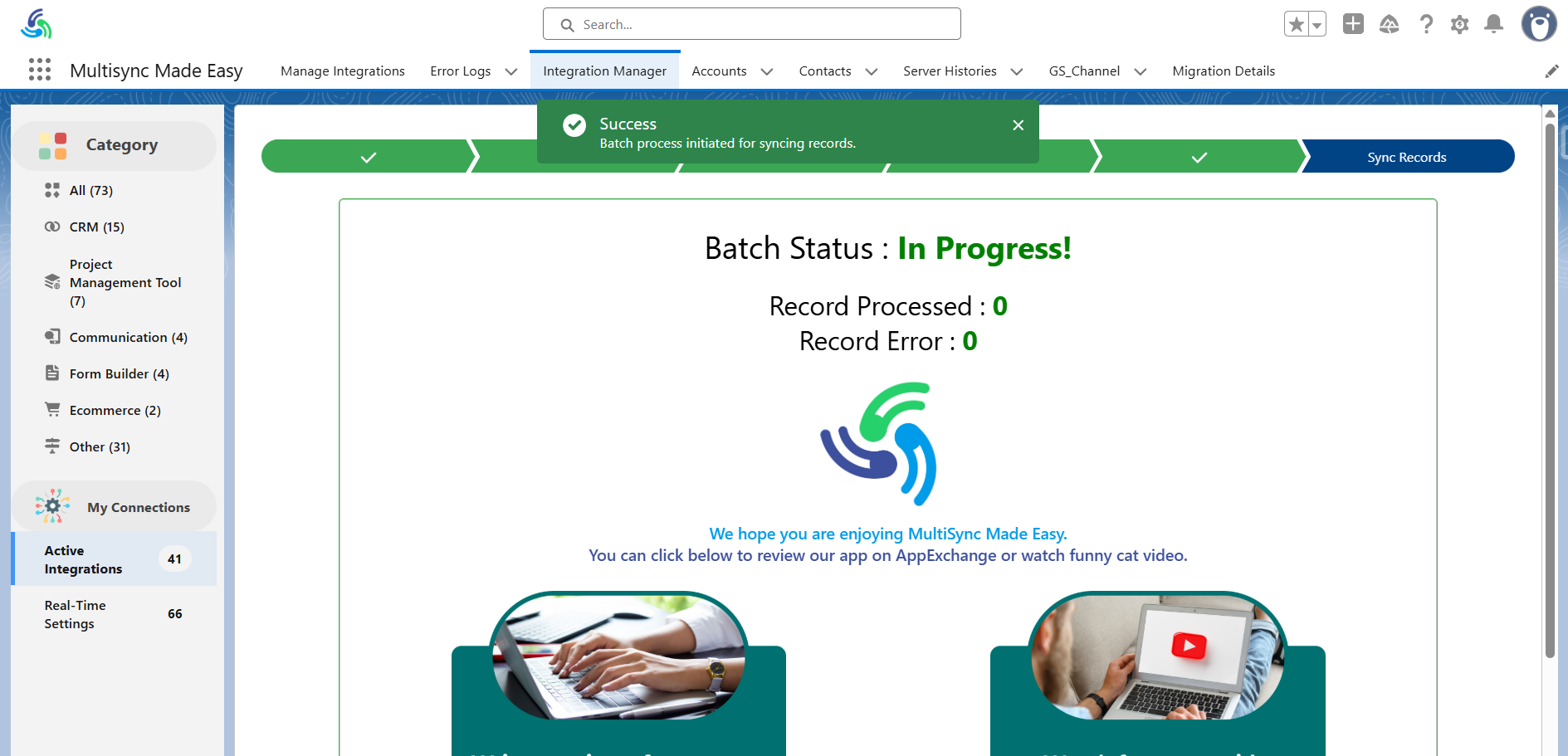
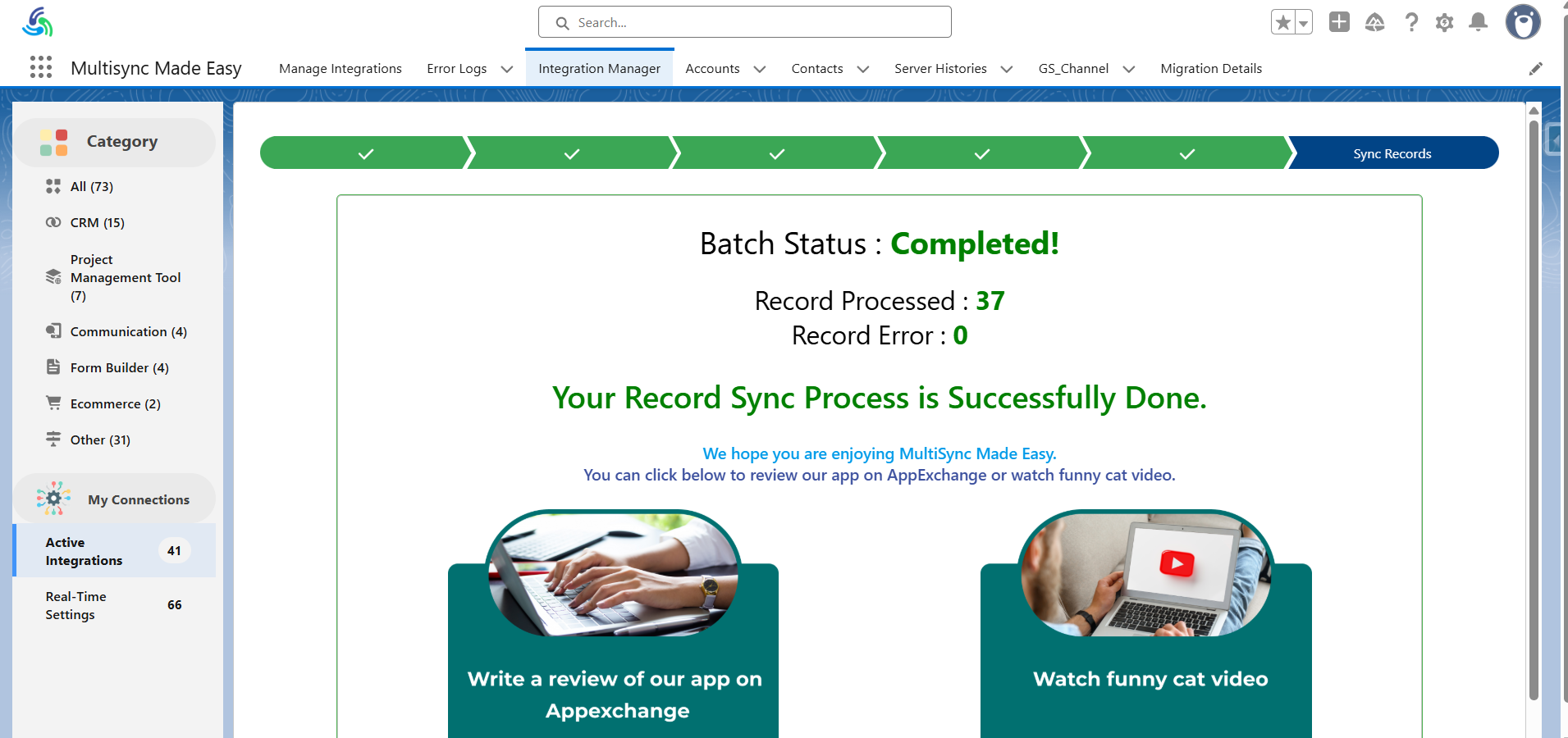
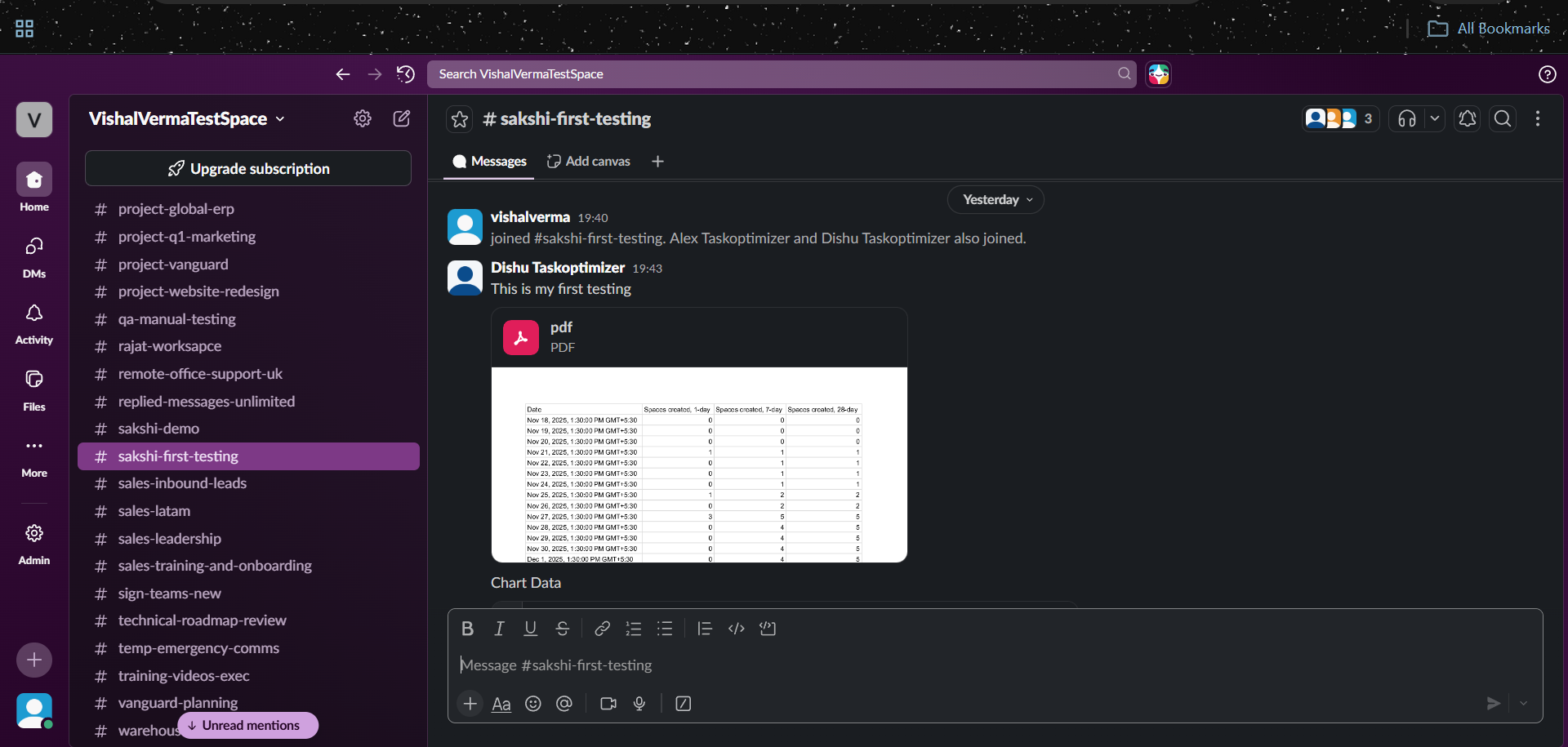
You will see that all the channels will be migrated to Slack platforms.
Looking to migrate data from or to Salesforce?
Integrating MS Teams with Slack doesn’t have to be complicated, and with MultiSync Made Easy, it isn’t. You can sync data between different objects, send info to MS Teams, and even keep things up to date in real time using webhooks, all without writing any code or developer’s expertise.
You can also connect Microsoft Teams and Salesforce with this app. If you’re looking for a simple, no-stress way to integrate MS Teams with Salesforce, the MultiSync Made Easy tool is definitely worth checking out for integrating your favourite apps and migration.
Step ahead with our robust and intelligent app that instantly integrates multiple platforms — even the unknown ones!